Overview
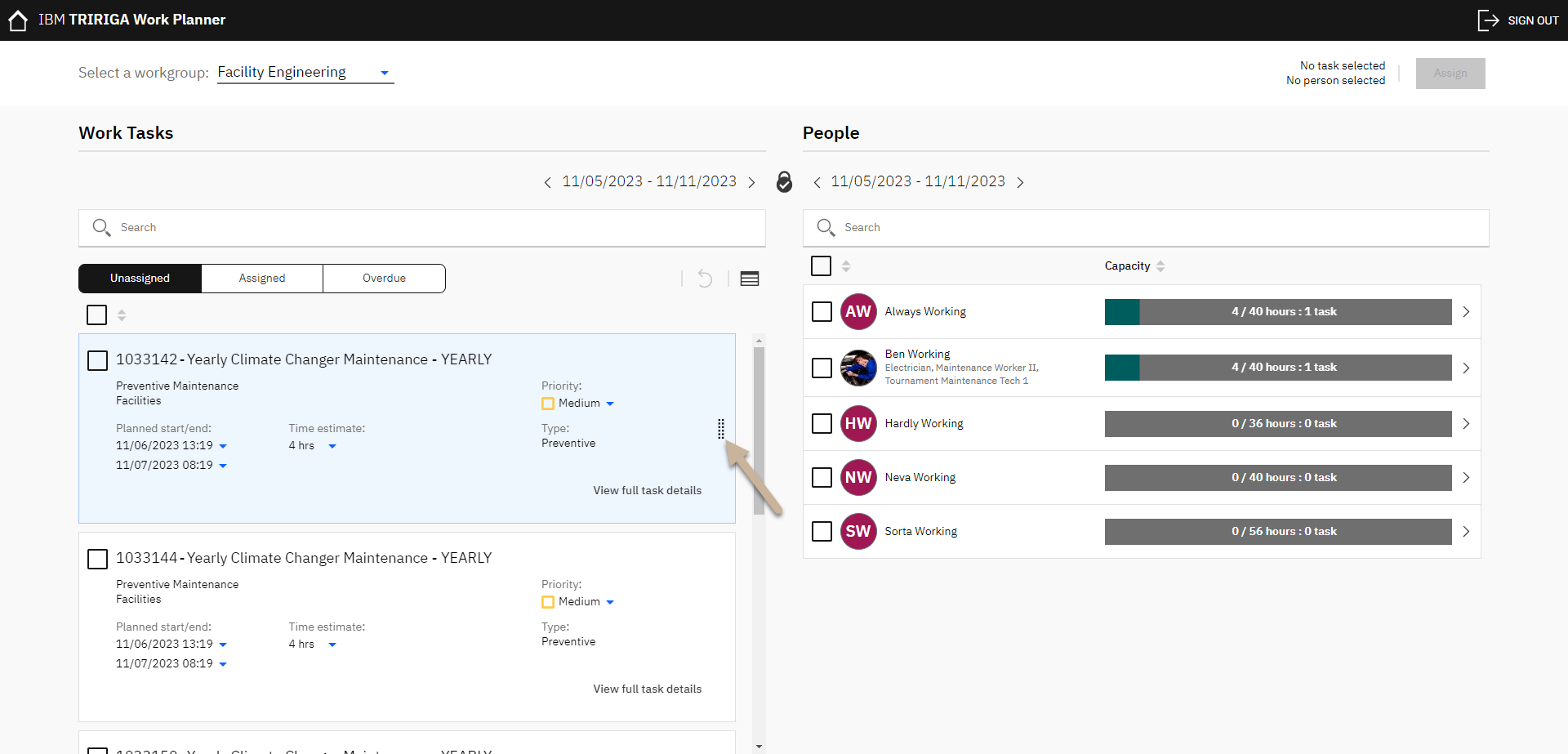
When work tasks are created they are routed to the appropriate work group based upon characteristics of the work (location, type, priority, etc.). Tasks can then be assigned to individual technicians using the Work Planner. Both Corrective and Preventive Maintenance tasks will show up. This allows the Shop Supervisors to balance workloads appropriately and create a plan for the team.
Purpose
Use Work Planner to assign an unassigned work task to a technician, review technician capacity, and move a work task to another responsible workgroup when necessary.
Roles
This test case may be executed by:
Shop Supervisor
Shop Second
Building Operations Administrator
Before you begin
Confirm that you have access to Work Planner.
Know the responsible workgroup for the task.
Know the technician or new workgroup that should receive the task.
Confirm that the task is displayed in the applicable planning week.
Assign a Work Task to a Technician
Step 1: Open Work Planner
1. Login to IBM Tririga Work Planner - https://frs-qa.usgov.tririga.com/p/web/workPlanner
2. From the Home page, locate Related Links - Tasks.
3. Select Work Planner.
4. Select the applicable workgroup from Select a workgroup.
Step 2: Find the task
1. Use the date arrows to display the applicable planning week.
2. Select Unassigned.
3. Use the search field when needed.
4. Review the task name, location, priority, planned dates, time estimate, and task type.
Step 3: Select the task and technician
1. Select the checkbox beside the work task.
2. Review the technicians listed under People.
3. Review each technician's assigned hours and capacity.
4. Select the checkbox beside the technician who should receive the task.
5. Select Assign.
Step 4: Verify the assignment
1. Confirm that the task is removed from the Unassigned list.
2. Confirm that the technician's assigned hours and task count are updated.
3. Select the arrow beside the technician to open Team Assignments.
4. Verify the task, allocation date, allocated time, due date, priority, and status.
Reassign a Work Task to Another Workgroup
Step 1: Open the work task
1. Locate the task in Work Planner or the Shop Supervisor Dashboard.
2. Select View full task details or open the task from the task list.
Step 2: Change the responsible organization
1. On the General tab, scroll to Responsible Organization.
2. Select Find.
3. Search for the new workgroup.
4. Select the correct workgroup.
5. Confirm the selection.
Step 3: Save and verify
1. Select Save & Close.
2. Return to Work Planner.
3. Select the new workgroup and applicable planning week.
4. Confirm that the task appears under the new workgroup.
Expected result
The work task is assigned to the selected technician or transferred to the correct responsible workgroup.