
MREF Program Manager Guide
Overview
In MREF, the Program Manager sets up the money and the programs that projects draw from. That means two tasks: creating and issuing a Funding Source, then creating a Program that is funded by it.
The overall setup runs in this order:
- Set up a Funding Source.
- Set up a Program that takes from that source.
- Set up the project and budget in that program (Project Manager).
- Create the project by submitting a Funding Request.
This article covers steps 1 and 2.
Logging in
MREF can be reached from any device with internet access. To log in as a Program Manager, enter the following URL into your browser: [placeholder]
Sign in with your Program Manager credentials.
Creating a Funding Source
A Funding Source holds the money available per fiscal year. Once issued, its allocations can be drawn on by Funding Requests, Programs and Projects.
Add a new Funding Source
From the home page, click the Funding Source button.
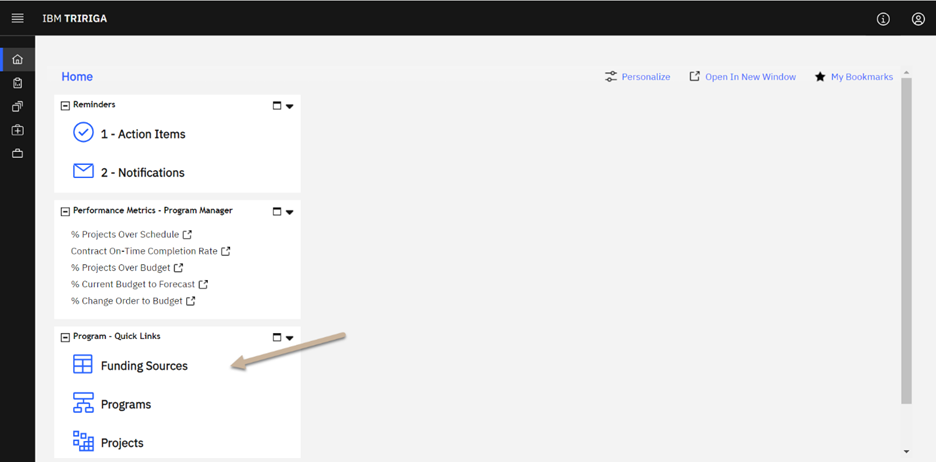
Click Add to add a new funding source.
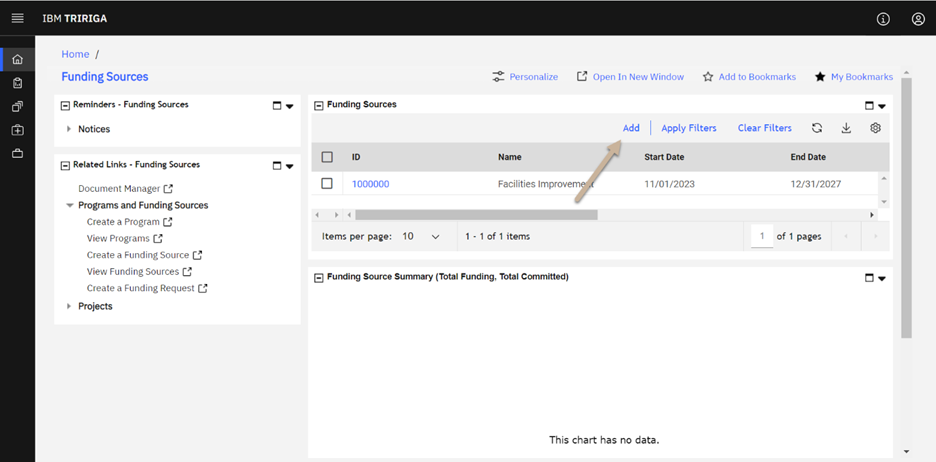
Enter the Name, Start Date and End Date, then click Create Draft.
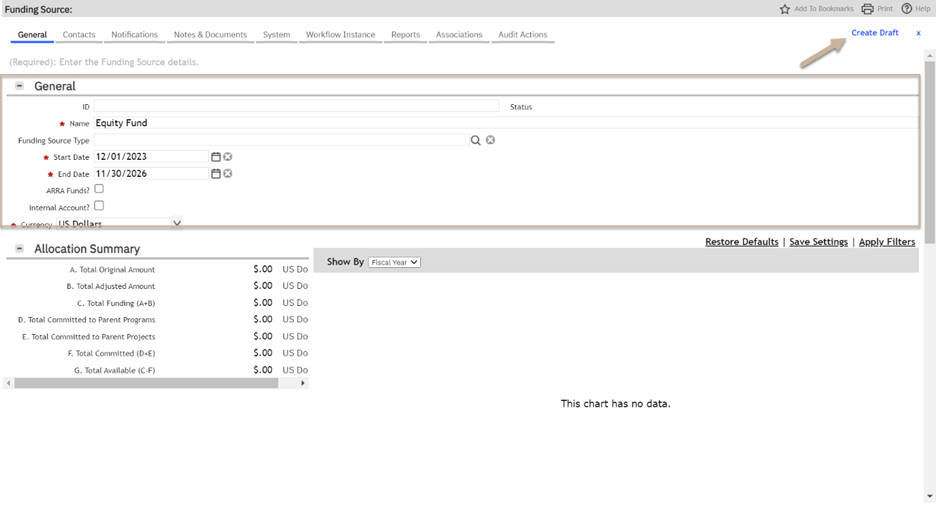
The Status updates to Draft, and the Funding Pending Approval section now lists a fiscal line item for each FY covered by the Start and End dates.
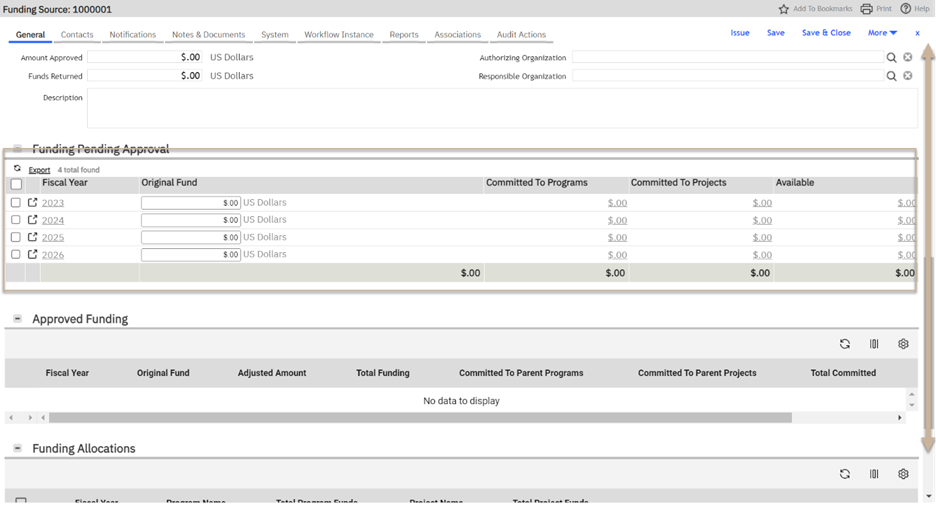
The header fields are for high-level tracking only. The funding line items in Funding Pending Approval are what Funding Requests, Programs and Projects draw down from.
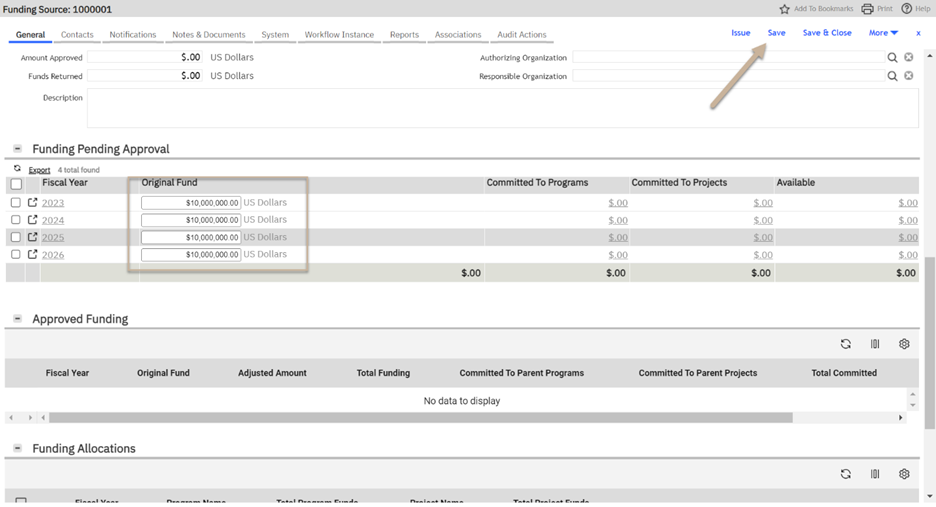
Enter the amount of funding available for each FY, then click Save. The Allocation Summary chart updates.
Activate the Funding Source
When all the information is entered, click Issue to activate the funding source.
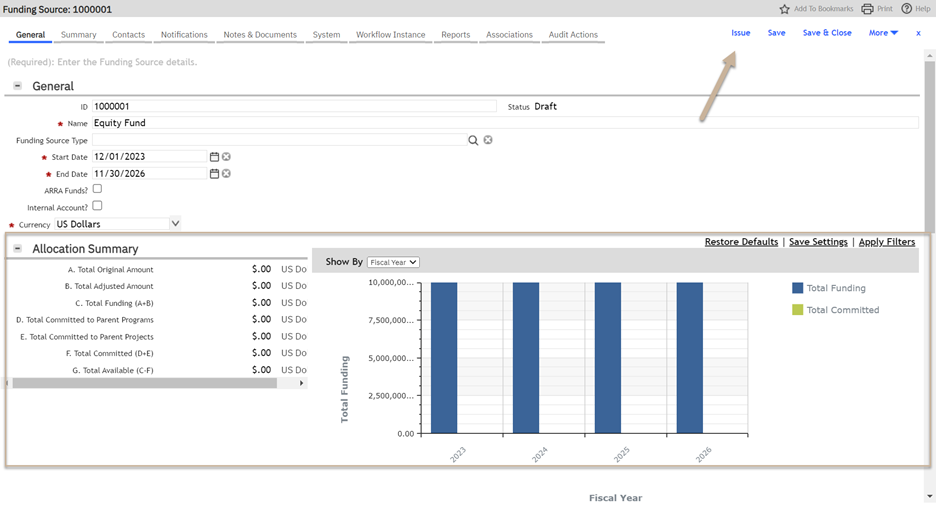
If Funding Sources require approval in your setup, issuing sends it through that approval process. Otherwise, issuing makes its allocations available right away.
Outcome: Once the Funding Source is Issued, the Allocation Summary shows updated numbers and funded line items move to the Approved Funding section. That funding can now be allocated to programs and projects.
Creating a Program
A Program groups the sub-programs, projects and funds for an organizational initiative. It draws its funding from an issued Funding Source.
Create the Program
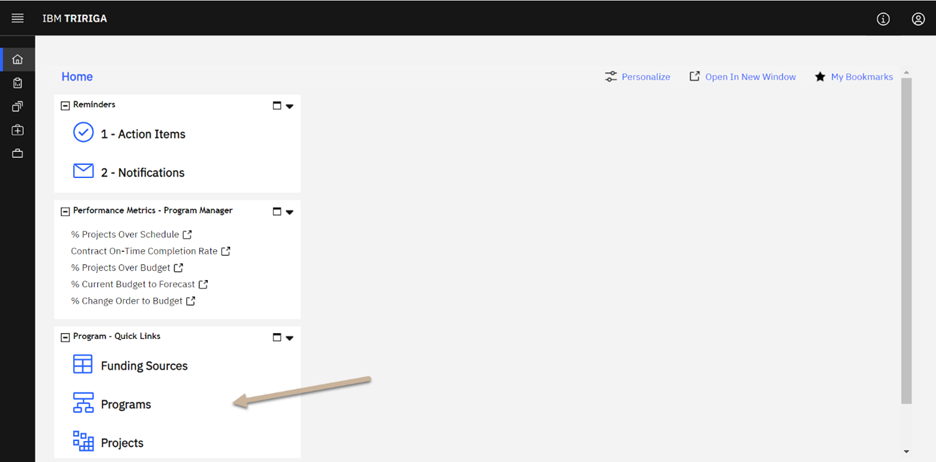
From the home page, click the Programs button.
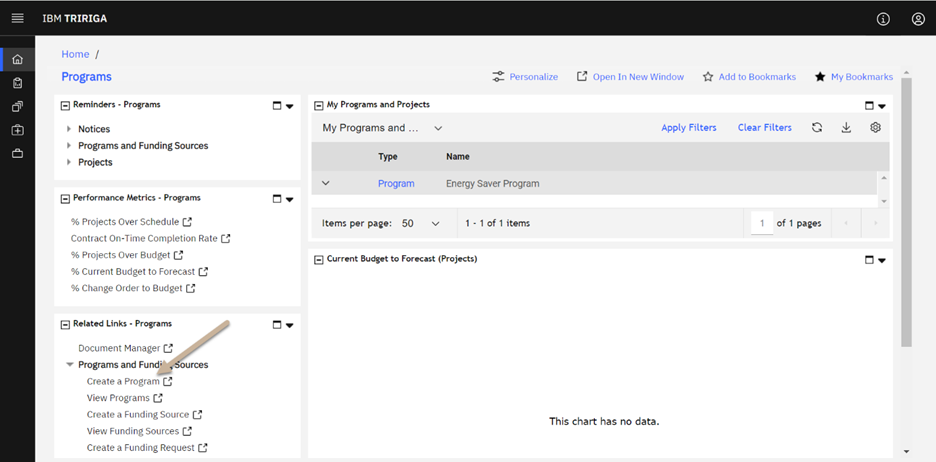
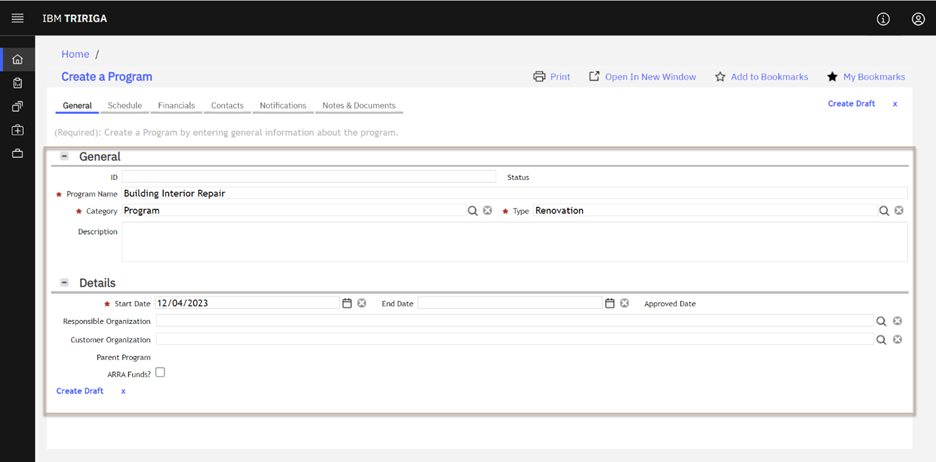
Click Create a Program to begin.
Fill in the General section fields, and enter the program's Start and End dates in the Details section.
Add the Program Manager contact
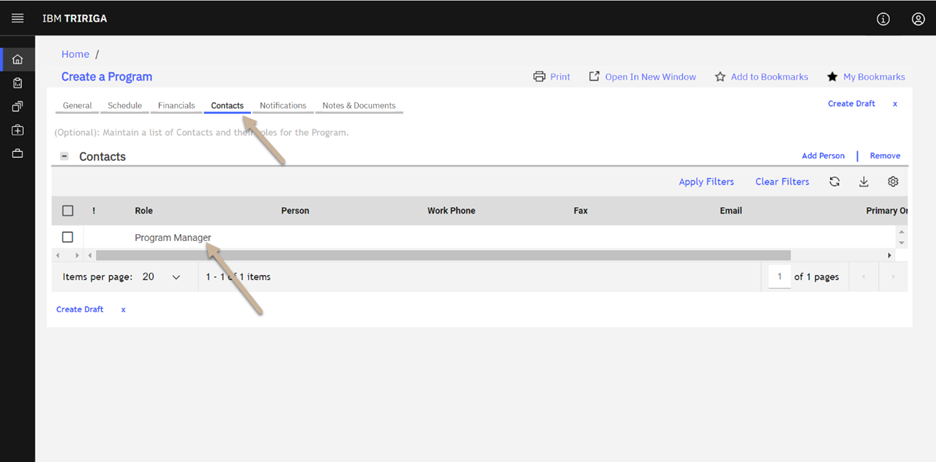
Go to the Contacts tab and open the Program Manager record.
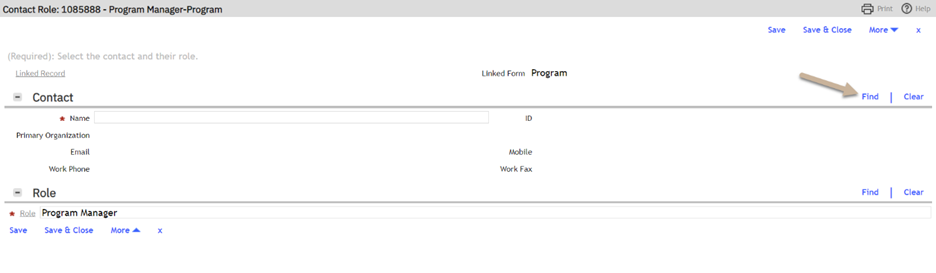
Click Find in the Contact section of the Program Manager record.
Select the Program Manager (Patty Program in the dev environment), then click Save & Close.
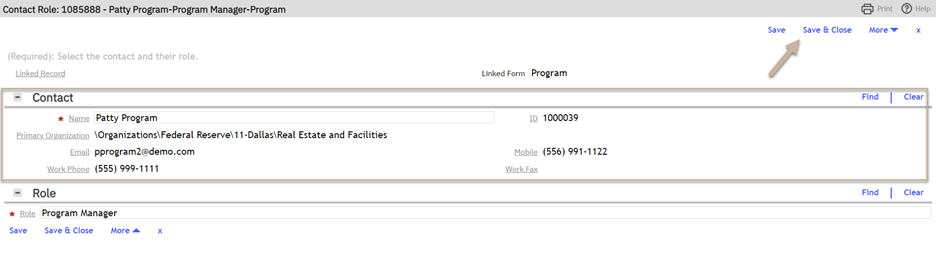
The contact is added to the program record. More contacts can be added depending on your process; contacts can also be used to send notifications and request approvals.
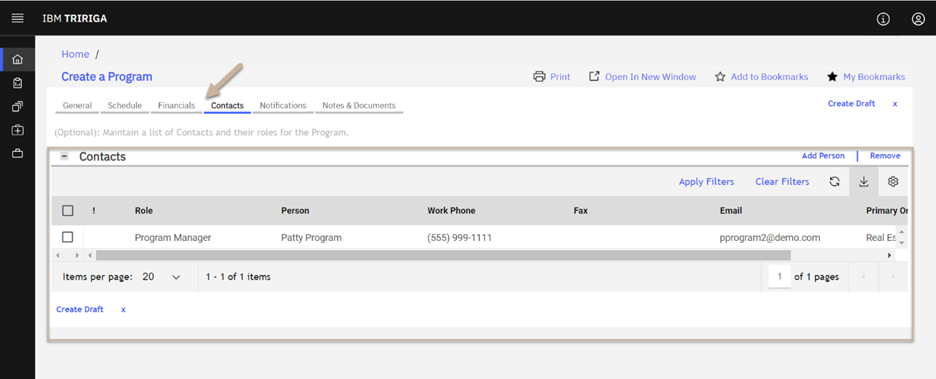
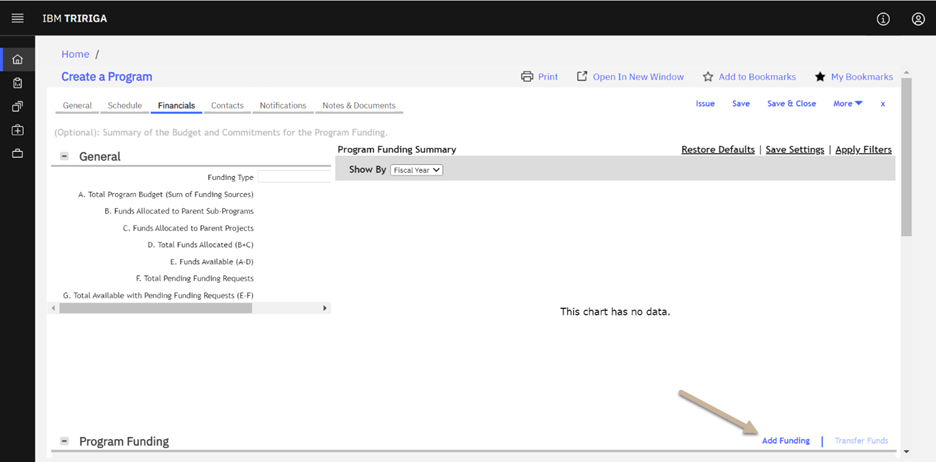
Add funding to the Program
Go to the Financials tab and click Add Funding.
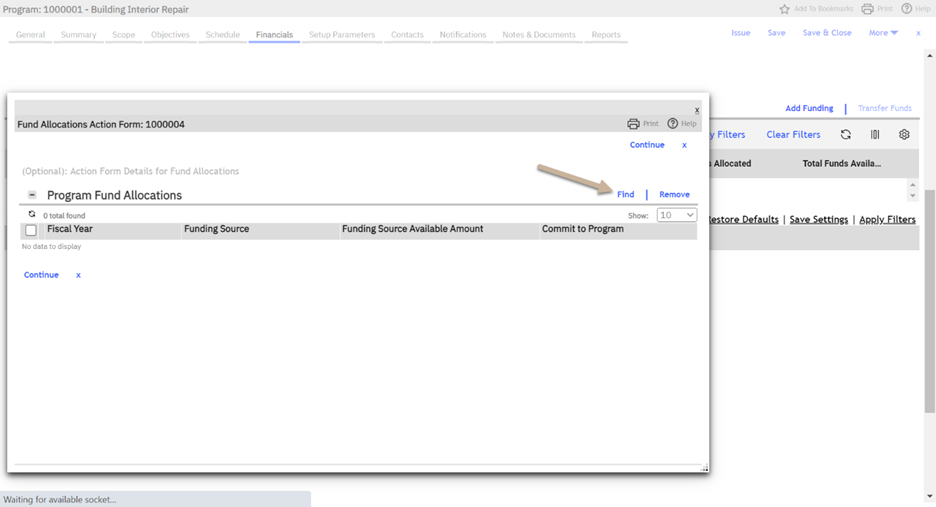
Click Find.
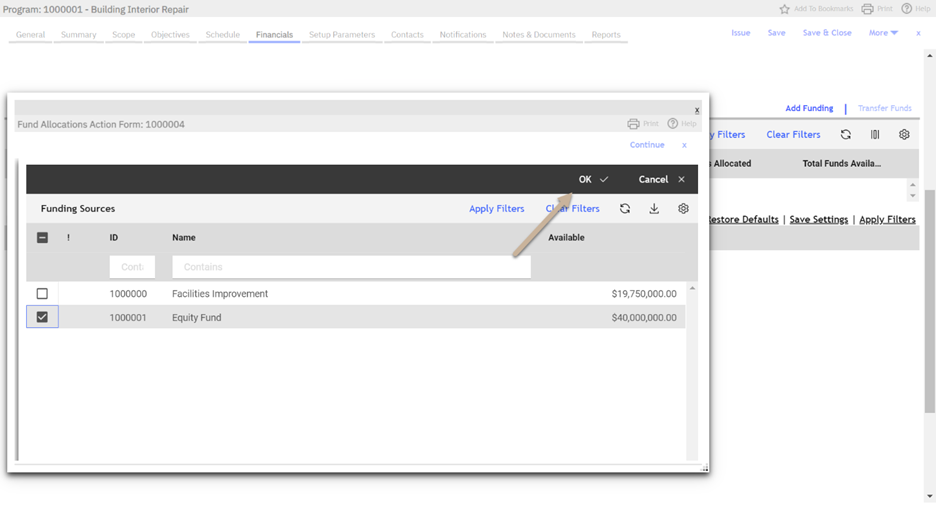
The funding sources available to you, based on your security, appear in the list.
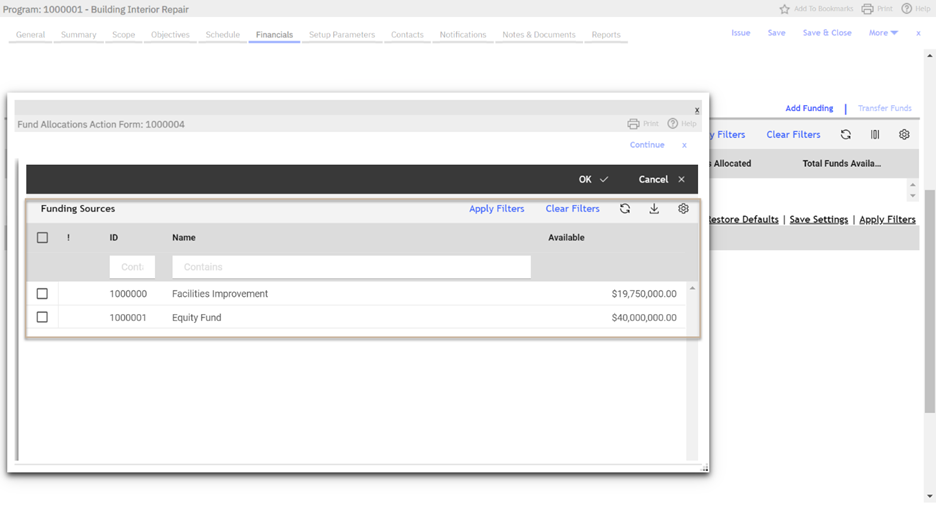
Select a funding source and click OK.
The funding allocation years from that source appear on the program.
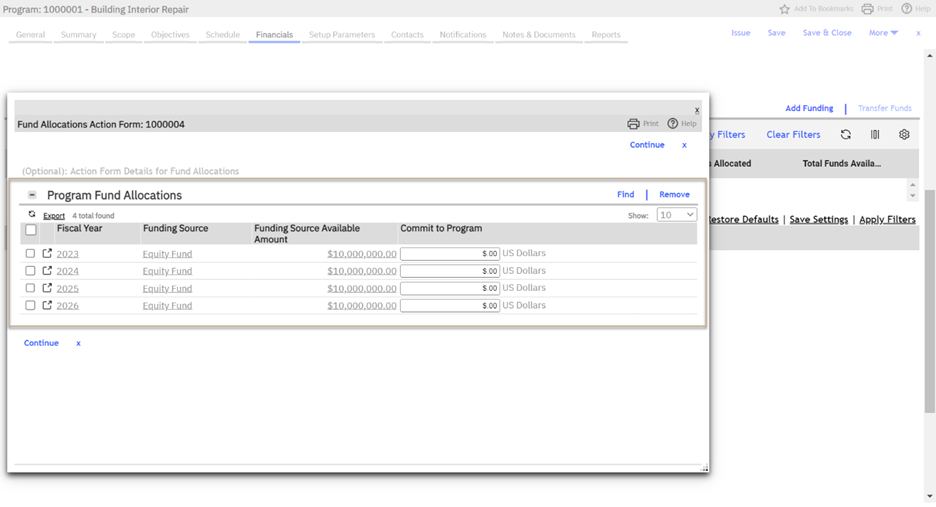
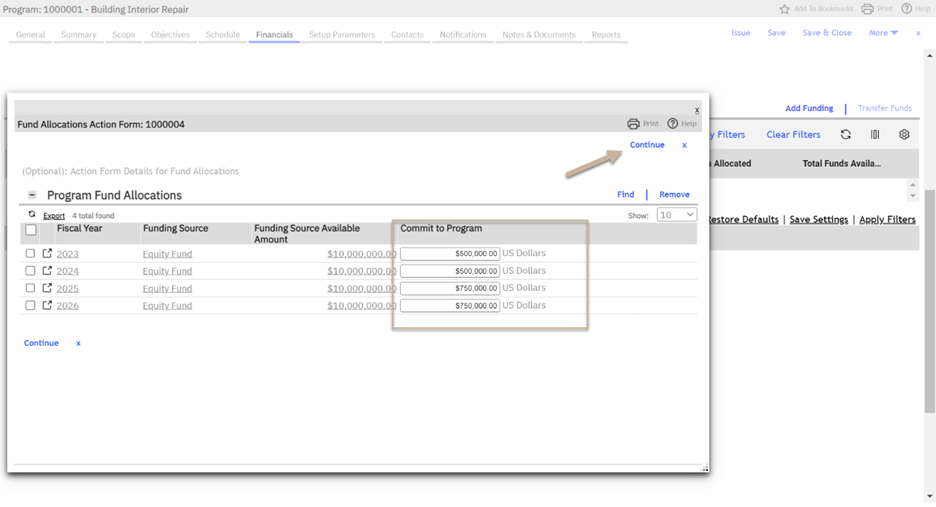
Enter the amount allocated to the program for each year. If funding isn't allocated for every year, select the unused years and remove them. Then click Continue.
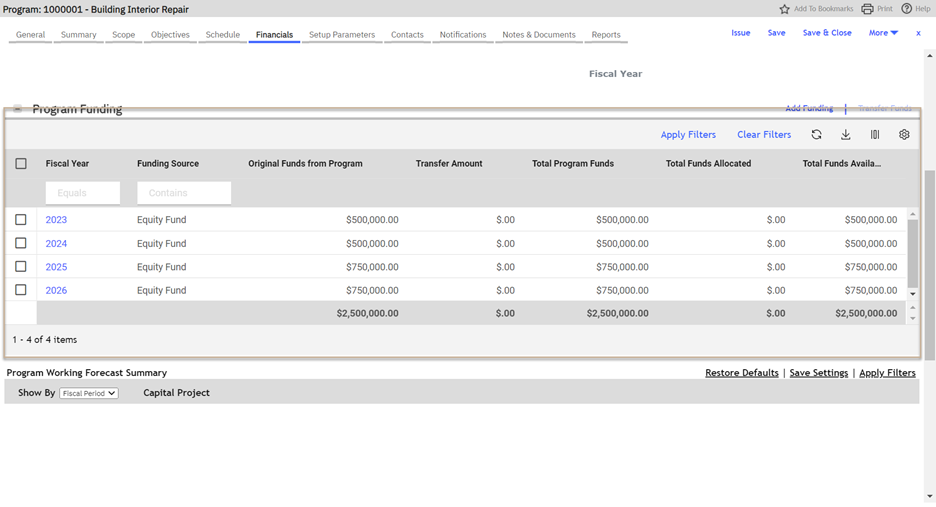
The funding is added to the program, and the program funding summary shows the total funding and the allocated amount.
Activate the Program
Click Issue to activate the program.
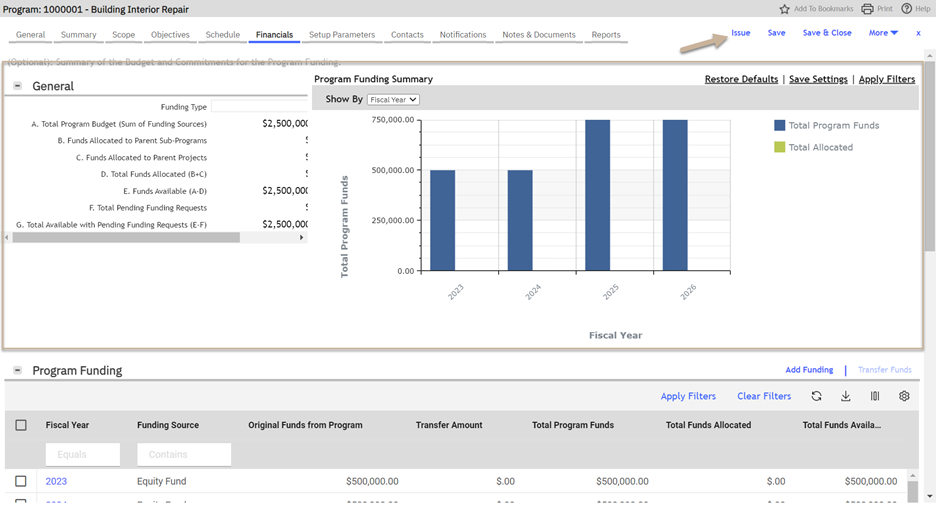
Outcome: Once activated, the Program tracks the initiative it was set up for. Its sub-programs, projects and funds are all tracked in the master Program record.